Integrating Ollama with Mendix: Local AI Made Easy

Introduction
Running large language models locally has become increasingly accessible thanks to Ollama. In this guide, we’ll walk through integrating Ollama — a tool for running LLMs locally — with Mendix, enabling your low-code applications to leverage AI capabilities without relying on cloud services. Original article here.
What is Ollama?
Ollama is an open-source tool that makes it easy to run large language models locally on your own hardware. It provides a simple API interface and supports a wide range of models including Llama, Mistral, Gemma, and many others. With Ollama, you can run AI models privately, without sending data to external services.
What is Mendix?
Mendix is a low-code application development platform that allows developers to build enterprise applications quickly with visual models and minimal hand-coding. It’s widely used for creating business applications, workflows, and data-driven solutions.
Prerequisites
Before you begin, make sure you have:
A Mendix development environment set up
Basic knowledge of Mendix microflows, domain models, and REST services
Sufficient hardware to run LLMs locally
Integration Architecture
The integration uses Ollama’s REST API to communicate between Mendix and the locally-running LLM. Mendix sends HTTP requests to Ollama’s API endpoint (running on localhost:11434), which processes the prompts using the selected model and returns the AI-generated responses. The communication follows a simple request-response pattern using JSON payloads.
Step-by-Step Integration
Installing Ollama Locally
Download and Install Ollama
Navigate to https://ollama.com/download
Download the installer for your operating system (Windows, macOS, or Linux)
Run the installer and follow the installation prompts
Start the Ollama Service
Open a terminal or command prompt and start Ollama:
ollama serveThis starts the Ollama server on
http://localhost:11434
. Keep this terminal window open while working with Ollama.
Verify Installation
Check which models are currently installed:
ollama listInitially, you should see no models installed.
Download and Test Your First Model
Download and run a model (this example uses Llama 3.2):
ollama run llama3.2:latestThis will download the model (which may take several minutes depending on your connection) and start an interactive chat session. Ask a question like “what is this?” and you should receive an AI-generated response.
Type /bye to exit the interactive session.
Test the REST API
Verify that Ollama’s REST API is accessible:
curl “http://localhost:11434/api/version”You should receive a JSON response like:
{”version”:”0.10.1”}Integrating with Mendix
Create the Ollama Module
In your Mendix project, create a new module called Ollama. This module will contain all the logic and domain models for interacting with Ollama.
Configure the Ollama Host Constant
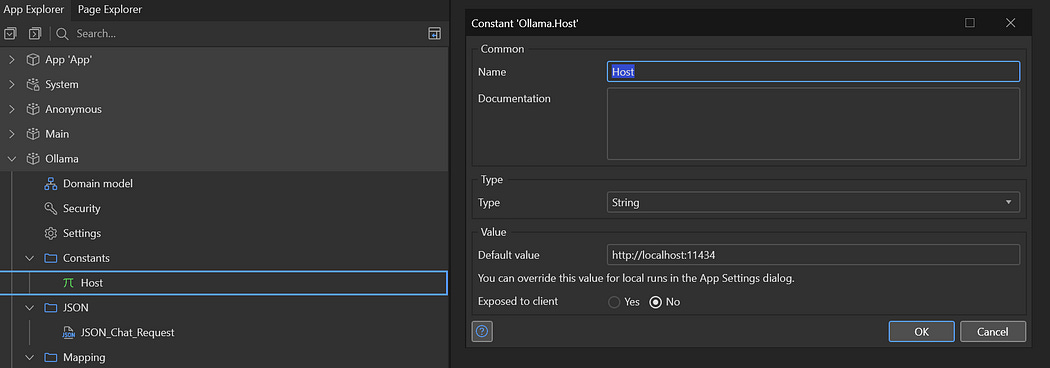
Host Constant
In the Ollama module, create a new constant called Host
Set its value to:
http://localhost:11434
This allows you to easily change the Ollama server location if needed (e.g., for production deployments)
Set Up the Request JSON Structure
Create a JSON structure called Ollama.JSON_Chat_Request based on the Ollama Chat API documentation:
{
  “model”: “llama3.2”,
  “stream”: false,
  “messages”: [
    {
      “role”: “user”,
      “content”: “why is the sky blue?”
    }
  ]
}
Key points:
model: Specifies which Ollama model to usestream: If set tofalsefor complete responses (vs. streaming)messages: Array of conversation messages with role and content
Create the Request Export Mapping
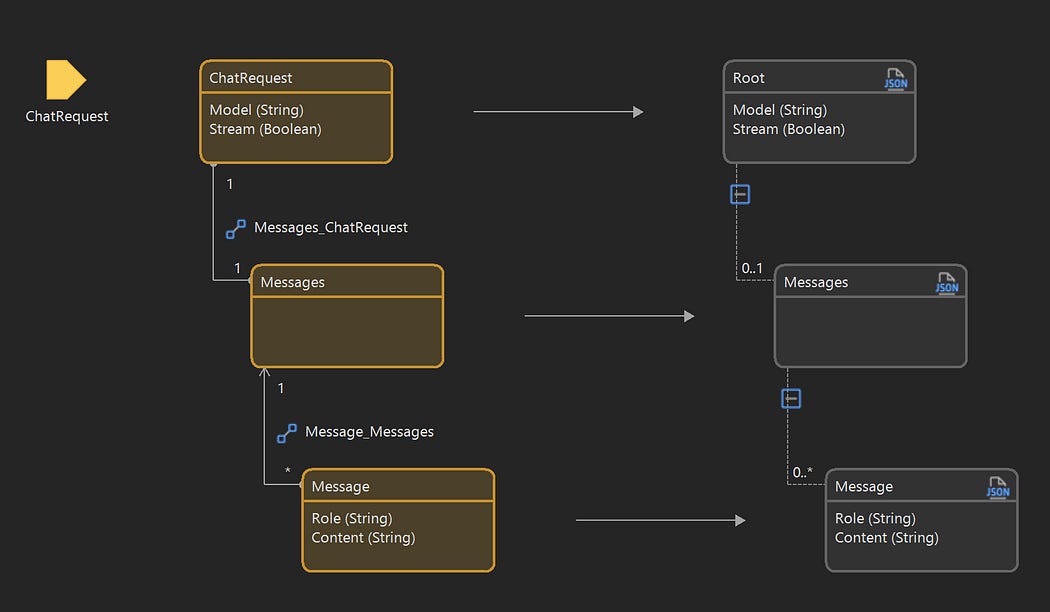
Export Mapping
Create an Export Mapping called EM_Chat_Request
Use the automatic mapping feature to map your domain model to the JSON structure
Rename entities as necessary to match your domain model conventions
Ensure the mapping correctly represents:
The request object with model and stream settings
The messages list
Individual message objects with role and content
Set Up the Response JSON Structure
Create a JSON structure called Ollama.JSON_Chat_Response to handle the API response:
{
  “message”: {
    “role”: “assistant”,
    “content”: “Because science.”
  }
}
Note: The actual Ollama response includes additional fields, but at minimum you need to capture the message content.
Create the Response Import Mapping
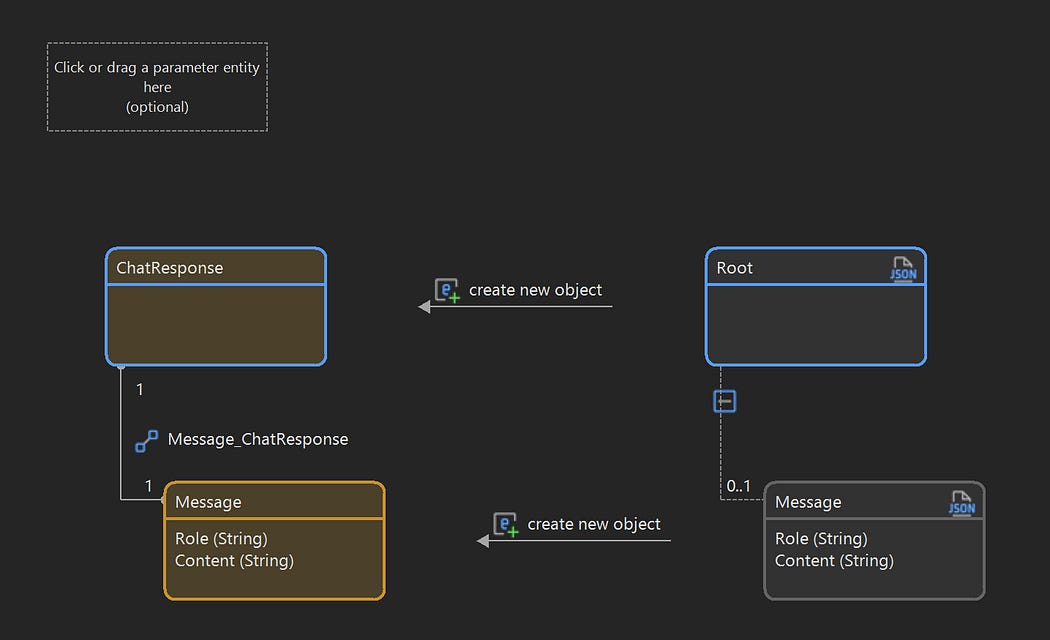
Import Mapping
Create an Import Mapping called IM_Chat_Response
Map automatically from the JSON structure to your domain model
Rename entities as required to maintain consistency
Ensure the mapping extracts:
The assistant’s role
The response content
Domain
With the Import and Export mappings set up, the domain should look something like this
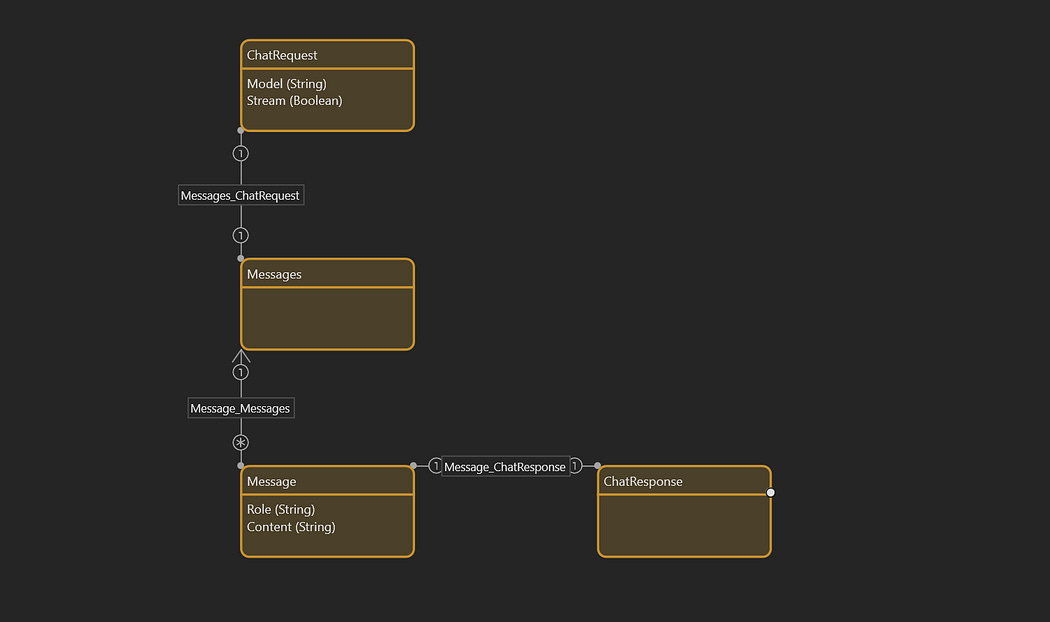
Basic Domain
Build the Chat Microflow
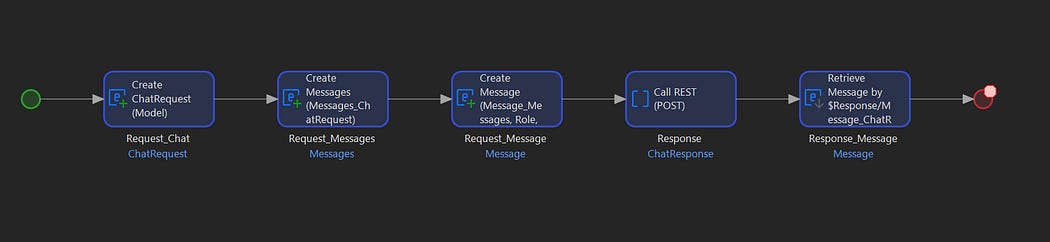
Basic Test Microflow
Next create a microflow called IVK_Chat that orchestrates the complete interaction:
Create Request Objects:
Create a new ChatRequest object
Set the
modelattribute (e.g., “llama3.2:latest”)Set
streamto falseCreate a Messages object and set up the association
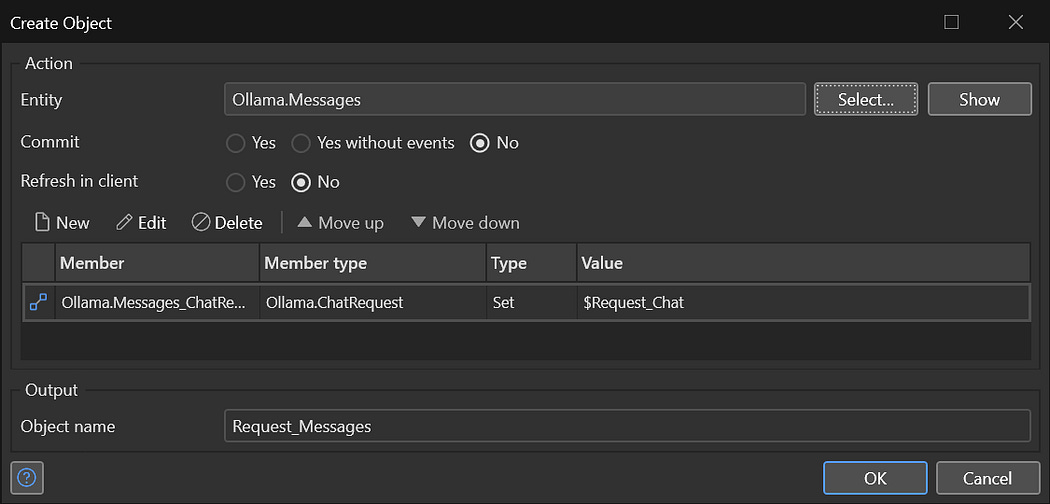
Request Messages Object Configuration
Create a Message object with role “user” and your prompt content
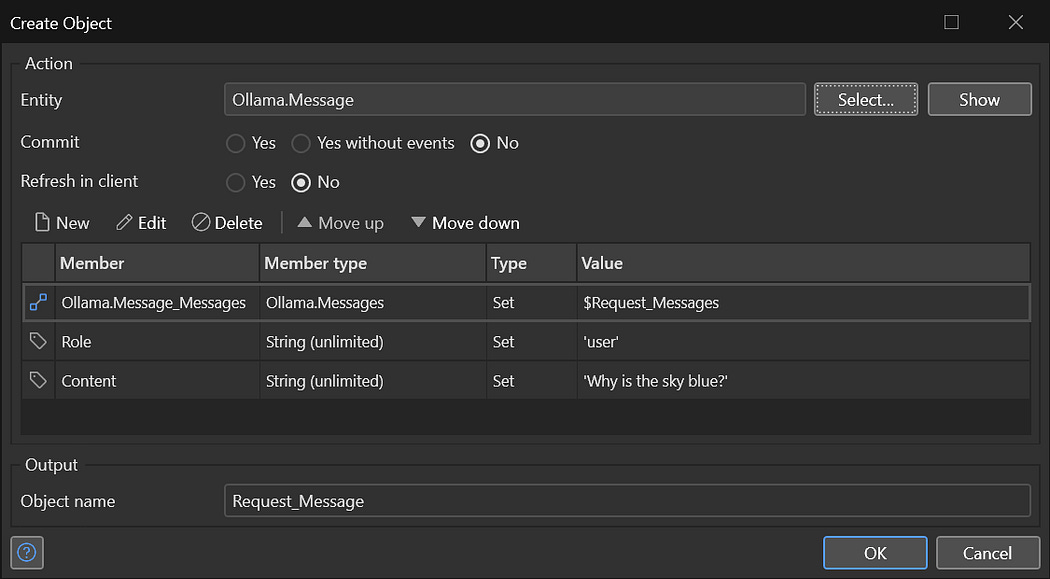
Request Message Object Configuration
Call the REST Service:
Use the Call REST Service activity
Set the HTTP method to POST
Set the location to:
$Host + '/api/chat'
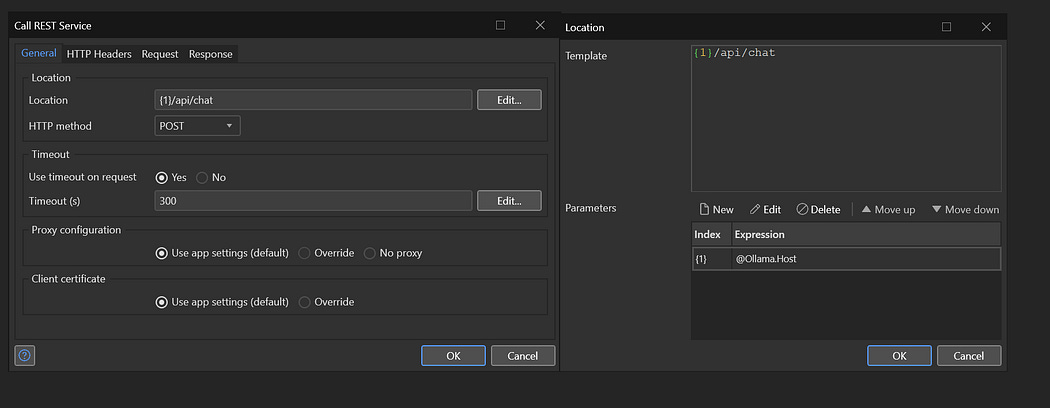
Configuring Method and Location
Use EM_Chat_Request as the export mapping
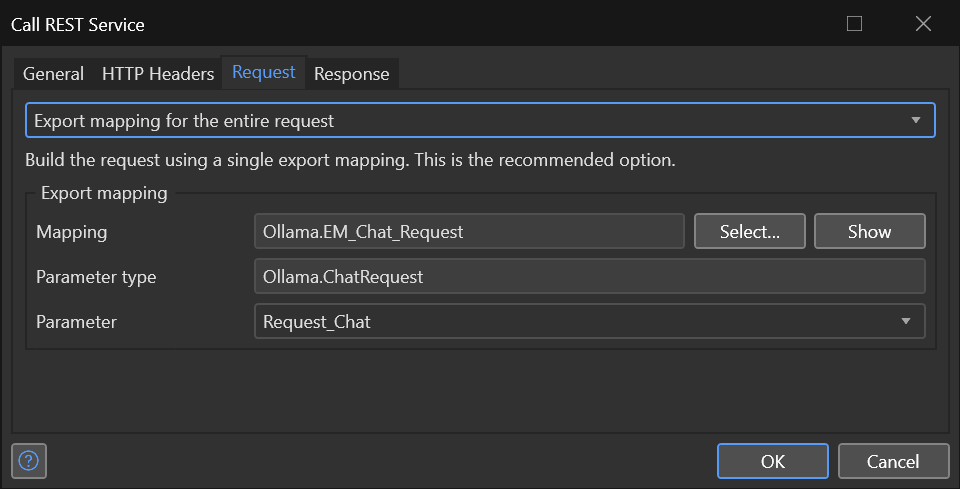
Configuring Export Mapping
Use IM_Chat_Response as the import mapping
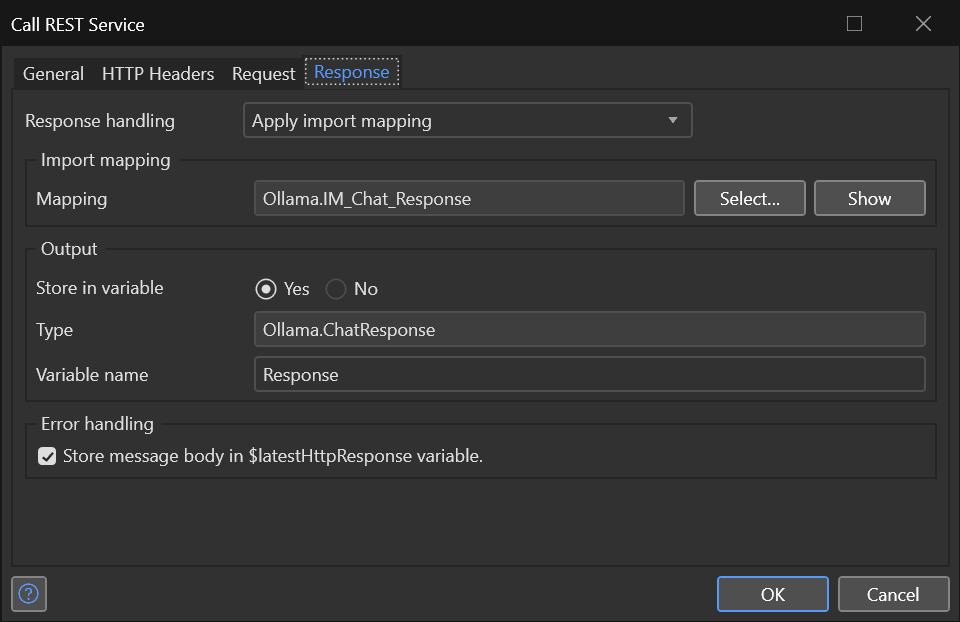
Configuring Import Mapping
Store the response in a variable
Test the Integration
When you call the IVK_Chat microflow you should now get a response from Ollama
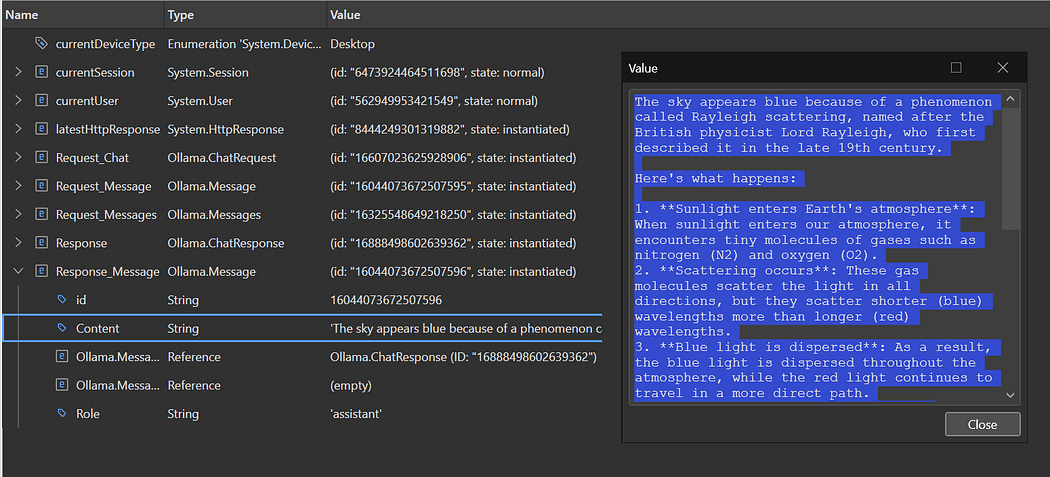
Mapped Ollama Response
Conclusion
By integrating Ollama with Mendix, you’ve unlocked local AI capabilities for your low-code applications. This integration provides a foundation for building privacy-focused, cost-effective AI features without dependency on cloud services. From here, you can expand to more sophisticated use cases like document analysis, code generation, customer service automation, and intelligent data processing — all running securely on your own infrastructure.
You can of course implement the full API to leverage all the Ollama features, including model management, image analysis, generating embeddings, etc.
Full Domain Implementation
The combination of Mendix’s rapid development capabilities and Ollama’s accessible AI models opens up exciting possibilities for creating intelligent applications that respect user privacy while delivering cutting-edge AI functionality.


Comments
Post a Comment